Just getting started with Batch PDF Merger? Read our Quick Start Guide! It’s the fastest way to get you going.
First, make sure you've downloaded and installed the software from our download page.
- You may select PDF files to be merged in one of two ways: Drag and drop your PDF files (or folder containing PDF files) into the application's left window. Or, you may click the button "Click here to choose your PDF folder" to select a folder containing PDFs.
- Rearrange the files in any order by simply dragging and dropping the files in the program's left window (to select multiple files, press the Ctrl key (Command key on Mac) while dragging).
If you need to split apart and view individual PDF pages, click the button "Split Apart Pages". An arrow will appear next to each file in the right window - click the arrow to drill down and view each PDF page. Simply drag and drop the pages to reorder. Selected pages can be removed by clicking "Remove Page", which will delete the selected page(s) in the right window. (Note: Your original files will always remain untouched on your computer).
- Click "Merge Files", choose a name and location for the new file and you're on your way!
Video Tutorial

Windows: Microsoft Windows 8, Windows 7, Windows Vista, or Windows XP; File size: 18 MB; 100 MB free hard disk space
Mac OS X: Mac OS X 10.4 or higher (Tiger, Leopard, Snow Leopard, Lion, or Mountain Lion); File size: 24 MB; 100 MB free hard disk space.
NOTE - Mac OS X 10.8 (Mountain Lion) Users: By default, Gatekeeper is turned on in Mountain Lion and this may prevent you from opening the installer. To disable Gatekeeper, click on your desktop and go to the Apple icon (top left) Choose: System Preferences > Security & Privacy > General:

In the "Allow applications downloaded from:" section, Choose "Anywhere".
First, download the program by going to our Download Page and click on your operating system (Mac or Windows).
Internet Explorer (Windows):
1. Run the installer.
Once the download finishes, click Run
to start installing Batch PDF Merger.
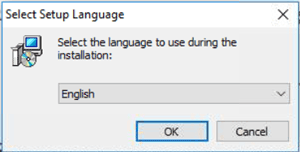
2. Follow installation instructions.
Follow the instructions to install Batch PDF Merger
on your computer and you will be good to go!
FireFox (Windows):
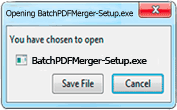
1. Save the Batch PDF Merger
application.
Click Save File
when prompted.
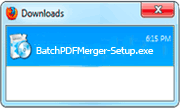
2. Open the Batch PDF Merger
installer.
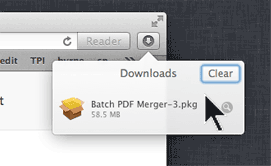
From your browser's Downloads
window, double click the .exe file
that just downloaded.
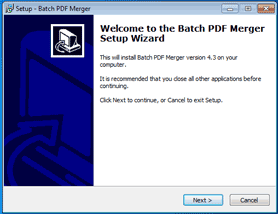
3. Follow Setup Instructions.
Follow screen instructions to
get program installed on your
computer and you'll be set!
Mac OS X:
1. Run the installer.
From your browser's Downloads
window double click the .app file to
start installation.
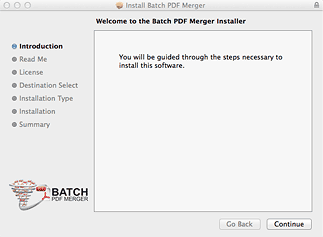
2. Follow installation instructions.
Follow the instructions to install Batch PDF Merger
on your computer and you will be good to go!

Windows 7, 8 or Vista Users:
- Click Start and choose Control Panel.
- Click Uninstall a program beneath Programs.
Note: If you are not using the Category view, open Programs and Features.
- Click the Batch PDF Merger entry that is listed.
- Click Uninstall.
- Click Yes in the User Account Control dialog if it displays.
Windows XP Users
- Click Start and open Control Panel.
- Open Add or Remove Programs.
- Click the Batch PDF Merger entry that is listed.
- Click Remove.
Mac Users: Simply drag Batch PDF Merger program out of the Applications folder into the trash. Empty the trash.
Installation Errors
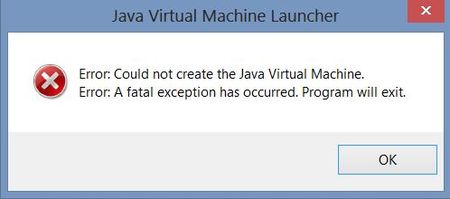
During installation of Batch PDF Merger, if you are getting errors
like this, you need the Computer Administrator to install the application for you. In some cases, if the program is already on your computer, simply uninstalling the program and then re-installing Batch PDF Merger will resolve this error.
Errors During a Merge
If an error occurs during the merge, this typically means one of your PDF files is encrypted or corrupt. Most of these errors are fixed in version 2.3 or higher. Click here to download the latest version (during installation, click "replace" to replace the old version).
Windows Users: Open the PDF file with Adobe Reader X (here's a link to the free download of Adobe Reader X). Simply double click the problematic file and now it will open in Adobe Reader X. Then save the file with a new name (File>Save as>PDF), choose a new name and location. Try re-merging the newly saved file. NOTE: This is not the same as right clicking on the file and renaming it!.
Mac Users: Open the PDF file in the Preview Application and rename the file, save it, and try re-merging the PDFs.
Error During License Key Activation
If you are getting an error during the license key activation, try disabling your antivirus software or firewall to resolve this issue.
Sorry, we do not have a mobile app available. We are working on something and if you'd like to beta test for us, please send us an email.
You may purchase Batch PDF Merger now from our web store. You will get your license key in less than 2 minutes!
We accept all major Credit Cards, Paypal, Checks/Money Orders, Purchase Orders (POs), and Bank/Wire Transfers.
First, make sure you have downloaded the latest version of Batch PDF Merger from the download page.
Visit our activation page for instructions.
The license key will activate one computer/laptop. The key cannot be used at the same time on multiple computers.
Here's an example. Let's say the software was activated with a valid license key on your laptop. And, you would like to use the same key to activate the software on your home desktop computer - the key won't activate your desktop computer.
We do offer our license owners 2 free license key resets in order to move keys around, for situations shown above. After the second reset, there will be a small fee for future resets. Visit the reset page here.
In the example above, you can reset the key so that the home desktop computer can be activated, while the laptop will go into limited/demo mode. If you need to have both laptop and desktop fully activated, you will need to purchase one additional key. We do offer volume discounts.
No, there are no annual or recurring fees. When you make a one-time purchase for your license key, that's your key for life.
Annual or monthly subscriptions are usually offered by online services. Batch PDF Merger is a desktop software, which you own along with the purchased license key.
Volume Discounts
If you need multiple licenses, please email us for a discount coupon link.
Educational Discounts
Students, faculty, and staff at accredited K-12 schools, colleges, and universities are eligible for substantial discounts. Please send us an email with your institution's name, location, and your faculty/student ID (we prefer you use your institution's email).
For European Union customers, Value Added Tax (VAT) is added to all orders. For customers outside the EU, no VAT is added.
When you purchase Batch PDF Merger, our payment processing partner FastSpring is the seller of record. For tax reporting purposes, their W-9 and VAT information are available below. Note: FastSpring is required to charge VAT Tax at the VAT rate of the buyer's country.
FastSpring's W-9
FastSpring and VAT Tax Collection
NOTE: Refunds requested within 30 days of purchase will be considered.
Please send us an email to request your refund. We will need the following information from you:
The reference number for your purchase, found on the e-mail receipt;
The name of the person who purchased the license key(s);
A brief comment as to why you would like to be refunded.
There is no need to reinstall or download anything else. Your existing installation can be registered by copying and pasting your license key into the registration form of the software.
License key activation instructions can be found here.
No. For your added security, we do not handle credit card information over the phone, email, or fax.
You can pay by credit card online via our secure online web store.
Batch PDF Merger is available only as an electronic online download. We do not distribute the software on CD, DVD, or in a shrink-wrapped package. The software is currently not available in stores.
Click here to go to our secure web store.
You will be shown your license key on your browser immediately after the purchase. We send an email within seconds confirming the transaction, which includes the license key for your records and license key activation instructions.
Certainly, please download the demo from our download page. The demo is limited by the placement of a SAMPLE mark on the documents and a maximum of 2 files can be processed at once.
A one-time purchase of a license key will remove these restrictions.
If you need to retrieve your license key, send us an email with the name and the email that was used for the purchase.
The license key will only activate a single computer. This key cannot be used at the same time on other computers.
Here's an example. Let's say the software was activated with a valid license key on your laptop. And, you would like to use the same key to activate the software on your home desktop computer - the key won't activate your desktop computer.
After purchasing a license key, you are given 2 free license key resets in order to move keys around, for situations shown above. After the second reset, there will be a small fee for future resets. Visit the reset page here.
In the example above, you can reset the key so that the home desktop computer can be activated, while the laptop will go into limited/demo mode. If you need to have both laptop and desktop fully activated, you will need to purchase an additional key. We also offer volume discounts.
Three words: Security, Speed, and Size! With online services, you need to upload all your files to a server, which at times may not have the necessary security features in place to protect confidential PDF documents.
With a desktop application such as Batch PDF Merger, every part of the conversion is done right on your computer with no file size restrictions or security issues. Since you do not require an internet connection, the conversion process will be much faster than an online PDF merging service.
No, you do not need Adobe Acrobat. In fact, you'll save hundreds of dollars by using Batch PDF Merger. It's the #1 file merging alternative to Adobe Acrobat. Let Batch PDF Merger do the heavy lifting for you. Both Mac and Windows versions are available.
This is a very common scenario. First, load your file into the program (in the left window) and click the "Split Apart Pages" button. Your pages will appear in the right window and from there, you can remove select pages. When you are finished, go ahead and click the "Merge Files" button.
If you need to split each page into into its own file, we offer a more advanced product that will handle PDF file splitting - Multi PDF Splitter.
Absolutely. After you drag the PDF files into the window, simply click the button "Split Apart Pages" and you can then drag and insert individual pages in between other pages of your files. You control the order of the merged file.
A page thumbnail is shown to guide you in selecting the proper page. If you need to save the split PDF pages as individual files, you will need Multi PDF Splitter.
Yes, Batch PDF Merger will retain all hyperlinks embedded in your files after a merge.
This is a limitation of our demo version. To permanently remove the SAMPLE mark and be able able to convert more than 2 files at once, you will need to purchase a license key from our web store.
In some cases, a user will activate the license and inadvertently try to convert a file that has the SAMPLE mark on it from previous runs. Make sure the files you are converting do not have the SAMPLE mark on it from previous runs in the demo mode.
The program's processing speed and capability depend on many variables. Depending on file sizes, quantity of files and complexity, your computer's available RAM, processing speed, and operating system, the processing times will vary. Try to close out any unnecessary applications when running the program - this may help speed up processing times.
Oops! This is a very common problem. We recommend using one of these free services: SendSpace.com or Dropbox. Dropbox allows you free storage up to 2GB.
No, but we recently released a new product - Multi PDF Converter, which will convert multiple PDF files to JPG/JPEG or JPG/JPEG back to PDF.